


YARDI - Managing the AR Dashboard

Oct 20, 2025
 245
245
Yardi > AR Manager - Payments > Home
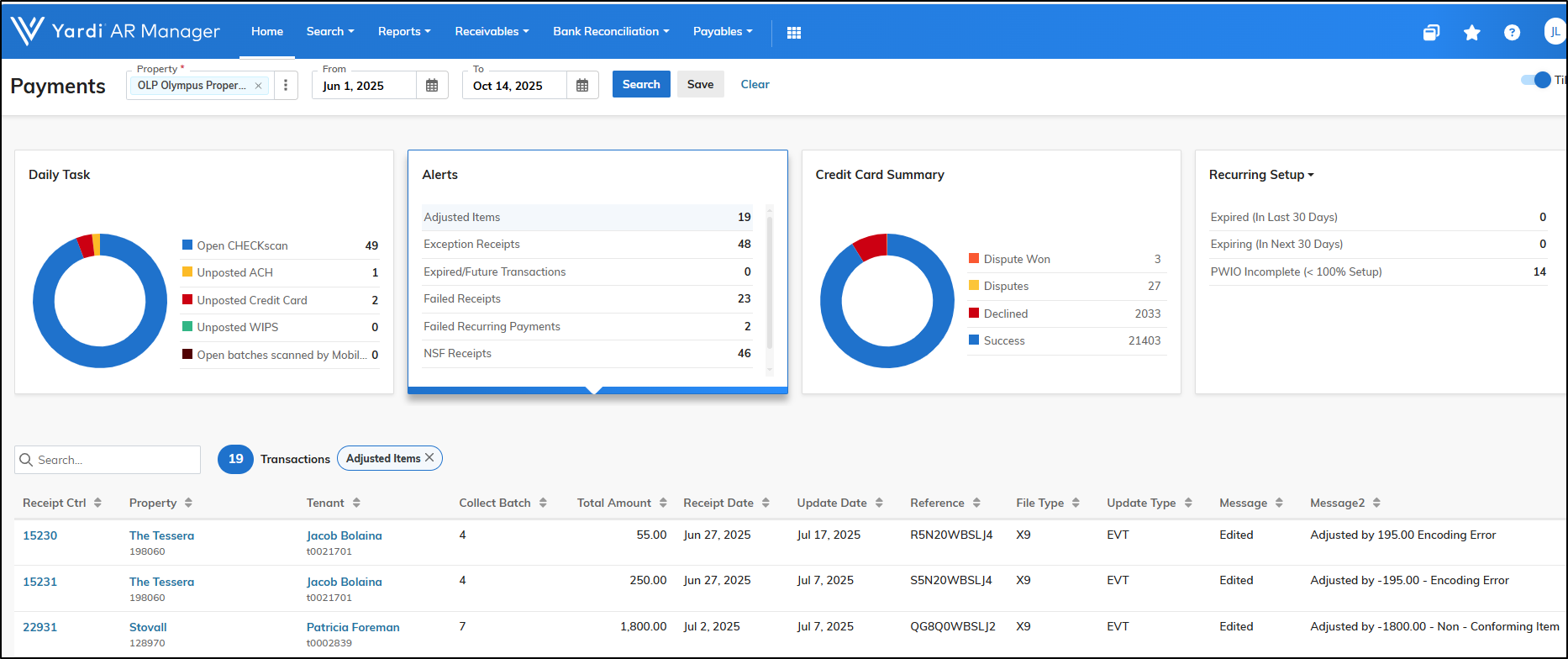
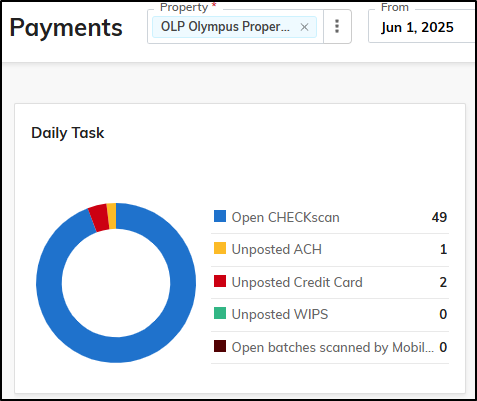
- Anything in Open CHECKscan (Even if only filtered for your property, may show others - If you don't have any, disregard) - Only action if you have an outstanding batch that needs to be closed or deleted
- Unposted ACH - ACH Payments that haven't posted (System posts twice a day, 3:00 pm CST and 1:00 am CST) - No Action Needed - Visibility Only
- Unposted Credit Card - Credit Card Payments that haven't posted (System posts twice a day, 3:00 pm CST and 1:00 am CST) - No Action Needed - Visibility Only
- Unposted WIPS - WIPS Payments that haven't posted (System posts twice a day, 3:00 pm CST and 1:00 am CST) - No Action Needed - Visibility Only
- Open batches scanned by Mobile - You can ignore at this time
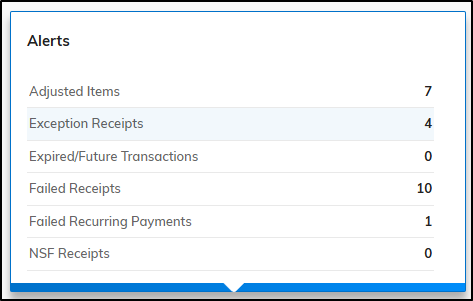
- [Action Item] - Adjusted Items - Scanned payments that are not for the correct amount - Action, submit a ticket in the Olympus Support Desk and we'll help clear/resolve.
- [Visibility Only] - Exception Receipts - You can ignore this section
- [Visibility Only] - Expired Future Transactions - Visibility Only - No Action Needed
- [Action Item] - Failed Receipts - These are payments that posted to the residents ledger but there was an error with the image. Action, these should be reversed, manually posted and deposited to the bank.
- [Visibility Only] - Failed Recuring Payments - Recurring Payments that failed - No Action Needed
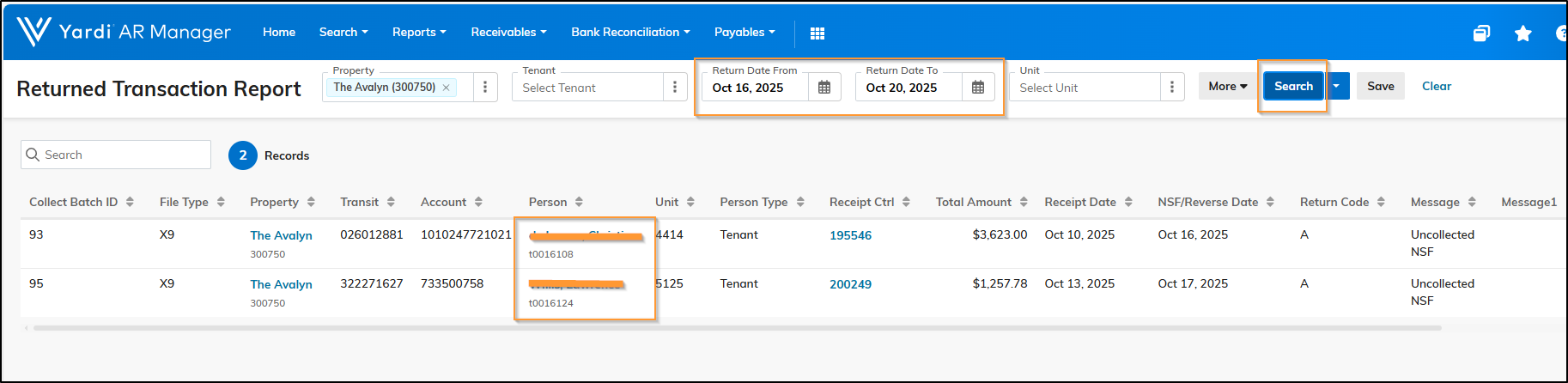
- NSF Receipts - This will always be 0 going forward. NSF's will be automatically posted to the ledgers. Email will be sent to the property email address. The team will need to charge up the NSF Fee. To lookup a return, go to AR Manager - Payments > Reports > Collect > Returned Transaction Report > Enter Date Range > Search
- Other Returned Items - This will always be 0 going forward. All returns will be automatically posted to the ledgers. Email will be sent to the property email address. The team will need to charge up the NSF Fee. To lookup a return, go to AR Manager - Payments > Reports > Collect > Returned Transaction Report > Enter Date Range > Search
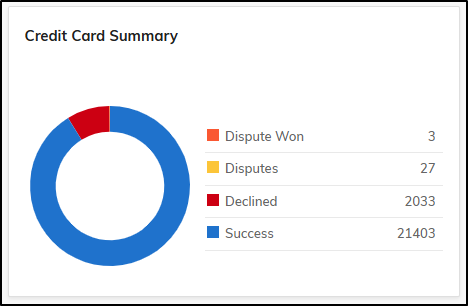
- [Visibility Only] - Disputes Won - This is the # of disputes that Yardi has won on the properties behalf - No action needed - Visibility only. The payments should reflect back onto the residents ledger shortly after disputes are won
- [Visibility Only] - Disputes - This is the number of disputes in progess - No action needed - Visibility only
- [Visibility Only] - Declines - These are the Declined transactions during the selected date range - If you drill in, you can see the reason for the decline. No action needed - Visibility only
- [Visibility Only] - Success - These are the Successful transactions during the selected date range - No action needed - Visibility only
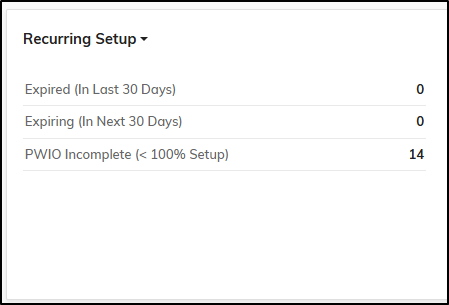
- [Visibility Only] - Expired (In Last 30 Days) - Recurring payments that expired in the last 30 days - No action needed
- [Visibility Only] - Epiring (In Next 30 Days) - Recurring payments that are expiring in the next 30 days - No action needed
- [Visibility Only] - PWIO Incomplete (<100% Setup) - Residents who have tried setting up PWIO for an amount less than 100%. For PWIO to process, the parameters when they set this up, needs to be 100%.
.
As always, if you have any questions or trouble clearing your AR Dashboard, kindly submit a ticket in the Olympus Support Desk.

